November 16, 2026
How to Whitelist an Email Address in Gmail (Step by Step)
Google reported in 2023 that Gmail blocked nearly 15 billion unwanted emails per day, a scale Flicked's Gmail statistics roundup puts in one blunt number. That wall is why your inbox isn't a landfill. It's also why a real invoice, a client reply, or the school newsletter can ride into Spam with the actual junk.
Gmail has no big red whitelist button. Outlook does, with a safe-senders list you can point at. If a friend told you to "just add them to your safe-sender list," they described a door that isn't on this wall. You've got two real controls, and both are fussier than a single toggle.
Table of Contents
- What Whitelisting Actually Means in Gmail
- How to Whitelist an Email Address in Gmail Step by Step
- Whitelisting Whole Domains and Google Workspace
- When Whitelisted Email Still Misses the Inbox
- Tips for a Safe-Sender List You Can Trust
- Set Up Your First Safe-Sender Filter Today
What Whitelisting Actually Means in Gmail
Gmail continues to block more than 99.9% of spam, phishing, and malware, which the University of Illinois ICT Gmail whitelisting FAQ treats as the reason you shouldn't broadly trust unknown domains. That catch rate keeps the inbox usable. It also sweeps up mail you wanted.
The myth most tutorials repeat is an Outlook-style universal safe-senders switch. Gmail doesn't have one, so "add them to your safe-senders list" isn't a click you can make.
Two controls exist.
Google Contacts is the lighter one. Google's documentation on external contacts says that when you add an external address to your personal contacts list, Gmail will not mark messages from that address as spam. Useful, and easy to overrate on its own.
"Never send it to Spam" is the closer thing to a real whitelist. You create or edit that filter from Gmail on a computer, never the mobile app. It's an inbox rule, not a promise that Gmail will ignore every security decision. Suspicious links, bad attachments, authentication failures, and impersonation can still trip warnings. On a work account, Google Workspace routing and compliance can override your personal filter.
| Control | What it does | Where to set it | Biggest limitation |
|---|---|---|---|
| Google Contacts | Gmail will not mark messages from a saved address as spam | Gmail Contacts tab or contacts.google.com | Weakest on its own; pair it with a filter for VIPs |
| Never send it to Spam filter | Server-side rule that keeps matching mail out of Spam | Gmail on a computer, then Settings → Filters | Desktop only and not retroactive for old messages |
| Both together | Contact entry plus filter for maximum protection | Contacts plus the Filters screen | Still cannot fix sender-side authentication failures |
Use the filter as your primary method. Save the Contact for VIPs, your accountant, your biggest client, the school office. The clicks are next.
How to Whitelist an Email Address in Gmail Step by Step
Billing mail that keeps landing in Spam needs a rule, not a missing button. Gmail has no Outlook-style safe-senders switch. Google's Gmail help on filters documents the filter as the direct fix when a specific sender's legitimate mail keeps landing in Spam. Set that rule first. A saved Contact is only an extra trust signal beside it.
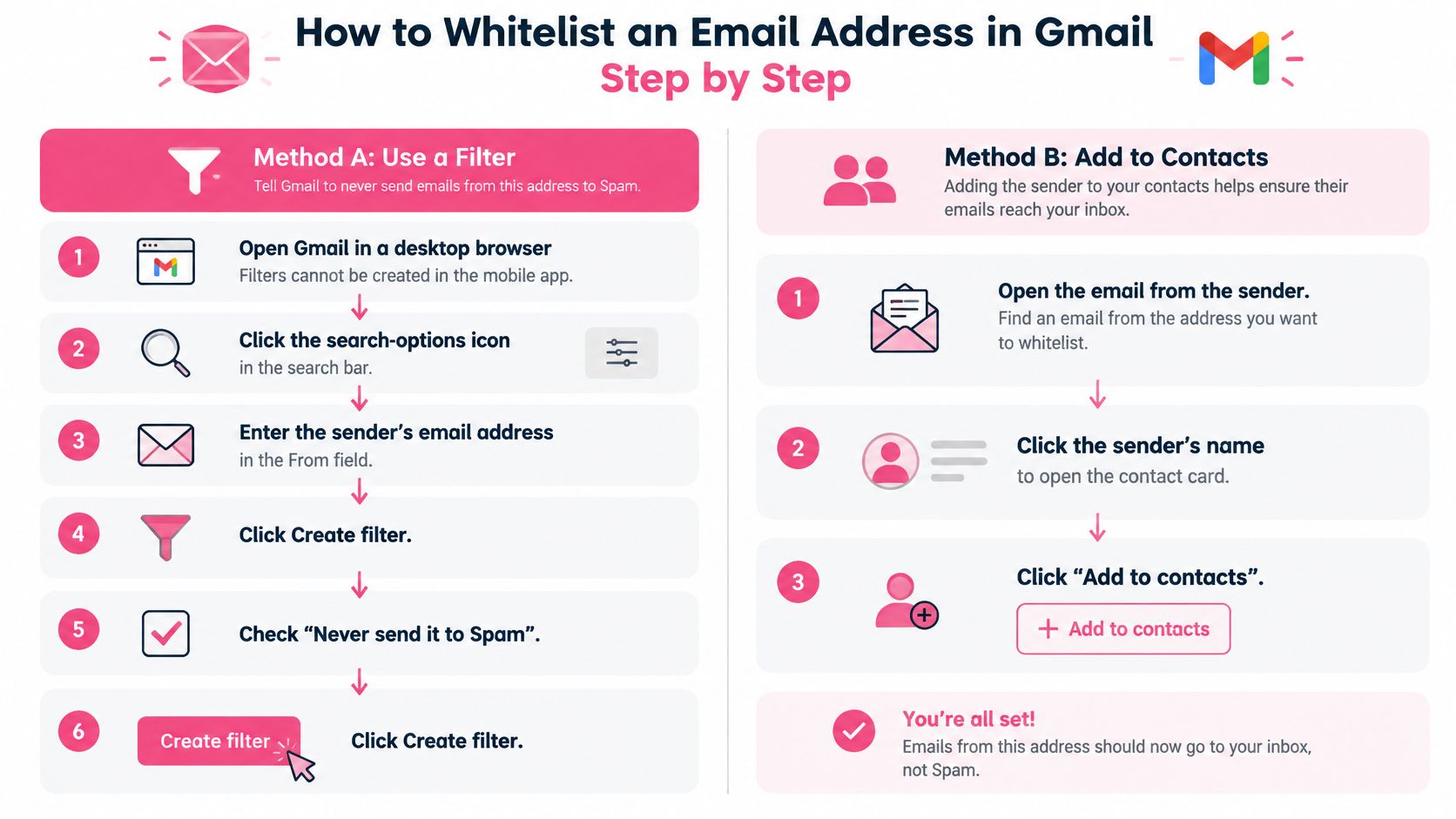
Method A, the filter
- Open Gmail in a desktop browser. You can't create this filter in the mobile app, so the phone stays in your pocket.
- Click the search-options sliders at the right end of the search bar.
- Type the sender's complete address in From, something like billing@vendor.com. Never a display name, and never a chopped domain.
- Optionally click Search first so you can see that the right messages match. If the list looks wrong, fix From before you save the rule.
- Click Create filter.
- Tick Never send it to Spam.
- If you also want the mail in Primary instead of Promotions, choose Categorize as → Primary. Categories and spam handling are separate switches. Leave Primary alone and the message can still skip Spam.
- Click Create filter again. The rule lives server-side and applies to future matching mail.
That address has to be exact. One sender's address builds a rule for that sender. A domain-style criterion widens the net, and you should only do that when you trust the whole domain.
The filter is not retroactive. Mail already sitting in Spam stays there until you open it and choose Not spam. Do that alongside the new rule, or the old messages look like the filter never saw them.
Practical rule: Only whitelist senders you already trust. This setting bypasses a major protective control.
The filter is the lever on your side of the inbox. It still cannot repair a sender whose authentication is broken, and suspicious links, bad attachments, or impersonation can raise warnings after the rule is on.
Method B, the Contact
Open Google Contacts, or click the sender's name on a message and choose Add to contacts. Save the exact address. Gmail will not mark that address's messages as spam. For a VIP, do both. The filter is the rule. The Contact is the extra trust signal.
If you want the clicks on screen while you do them, this short walkthrough matches the desktop path.
Whitelisting Whole Domains and Google Workspace
One address isn't always the whole problem. Sometimes you want a company. Sometimes you're the admin for a whole organization. Those are different jobs, and mixing them up is how people punch a hole in the wrong wall.
A whole domain in your own filter
Typing @company.com in the filter's From field treats every sender at that domain as approved. Do it only when you trust everything that domain sends. A domain-wide rule also lets spoofed or compromised accounts at that domain through the boundary you meant to keep. For three people at the same company, build three exact-address filters. Boring, and much safer.
A domain rule is a group pass. Hand it out only when you'd hand every employee a key to your inbox.
What admins set in Google Workspace
Consumer Gmail and Google Workspace don't share the same idea of an allowlist. Google's Workspace guide to Gmail IP allowlists draws the split clearly. An email allowlist is primarily a list of approved sending IP addresses. An approved-senders list holds individual email addresses or entire domains.
Admins reach both in the Google Admin console under Apps → Google Workspace → Gmail → Spam, Phishing and Malware. You need the Gmail Settings administrator privilege. IP entries must be public addresses. You can enter several as comma-separated values or as CIDR ranges.
Messages from allowlisted IPs are not placed in the Spam label. Recipients may still see a suspicious-email banner, so "not in Spam" is not the same as "looks clean." An IP allowlist applies across the organization's domain and identifies sending infrastructure. An approved-senders list identifies trusted people or domains and can bypass spam filtering. Neither tool exists so one employee can rescue a newsletter from a personal Spam folder.
Pick the narrowest rule that solves the problem. One address, then a domain, then an IP range, in that order, and only as far as you must go.
When Whitelisted Email Still Misses the Inbox
You ticked Never send it to Spam, saved the filter, and the next message still missed the inbox. The rule is a hallway pass. It tells Gmail to wave through one known sender. It does not stamp a valid ID on mail that failed the building's own checks.
A recipient filter cannot repair a sender who fails authentication, collects spam complaints, or sends from a tired domain. Google's email sender guidelines put the weight on that side of the pipe: senders of 5,000 or more messages per day to Gmail accounts must authenticate outgoing mail, avoid unwanted or unsolicited email, and offer an easy unsubscribe, and Google also recommends keeping the user-reported spam rate below 0.1% and preventing it from reaching 0.3% or higher.
Asking every recipient to whitelist bulk or cold email is not a substitute for permission, authentication, list hygiene, and unsubscribe compliance. A personal exception covers one inbox. It leaves every other Gmail user on the same broken sending setup.
A five-step check before you rebuild the filter
Work down the message, not the settings menu. One mismatch explains most "I already whitelisted them" threads.
- Open Spam first. The filter only governs future mail, so click Not spam on anything already stranded.
- Confirm the filter matches the exact From address in the headers. The envelope-from can differ from the friendly address you see in the list.
- On a problem message, use Show original and read the SPF and DKIM results. A fail here means the sender's domain did not prove it sent the mail, no matter how friendly the filter is.
- If you're the sender, fix your side. Google's email sender requirements say all senders must use SPF or DKIM, while bulk senders of more than 5,000 messages a day must use SPF, DKIM, and DMARC, with the authenticated domain aligned to the From header. Failures can mean temporary errors, permanent errors, or spam placement. Check domain reputation in Google Postmaster Tools.
- If a domain-wide rule is in play, test whether it's too broad, or whether it never matched the address that sent.
A whitelist covers mail you already expect. Bad links, risky attachments, and impersonation stay risky even when the address is on the list.
If messages bounce or keep landing in Spam after the filter looks correct, Mailbeam's guide to fix Gmail bounces and spam placement walks through the delivery failures a personal rule can't touch. You can also run the sending domain through Ever Outbound's email deliverability checker before you blame the recipient's Spam folder.
| Symptom | Likely cause | Fix |
|---|---|---|
| New messages still land in Spam | Filter missing the Never send it to Spam action, or wrong From address | Recreate the filter with the exact sender address and the spam exception ticked |
| Old messages stay stuck in Spam | Filters are not retroactive | Open the message in Spam and click Not spam |
| Mail arrives but lands in Promotions | Category labels and spam filtering are separate controls | Add Categorize as → Primary to the filter's actions |
| A suspicious-email banner still appears | SPF or DKIM authentication failure, or poor domain reputation | Sender checks Show original results and fixes authentication on their domain |
| Recipient never receives the message at all | Sender-side blocking, rate limits or spam-rate enforcement | Sender audits SPF, DKIM and DMARC records, list hygiene and Google Postmaster Tools reputation |
Tips for a Safe-Sender List You Can Trust
A short list you review beats a long list you forget. Every entry widens a door Gmail worked hard to keep narrow.
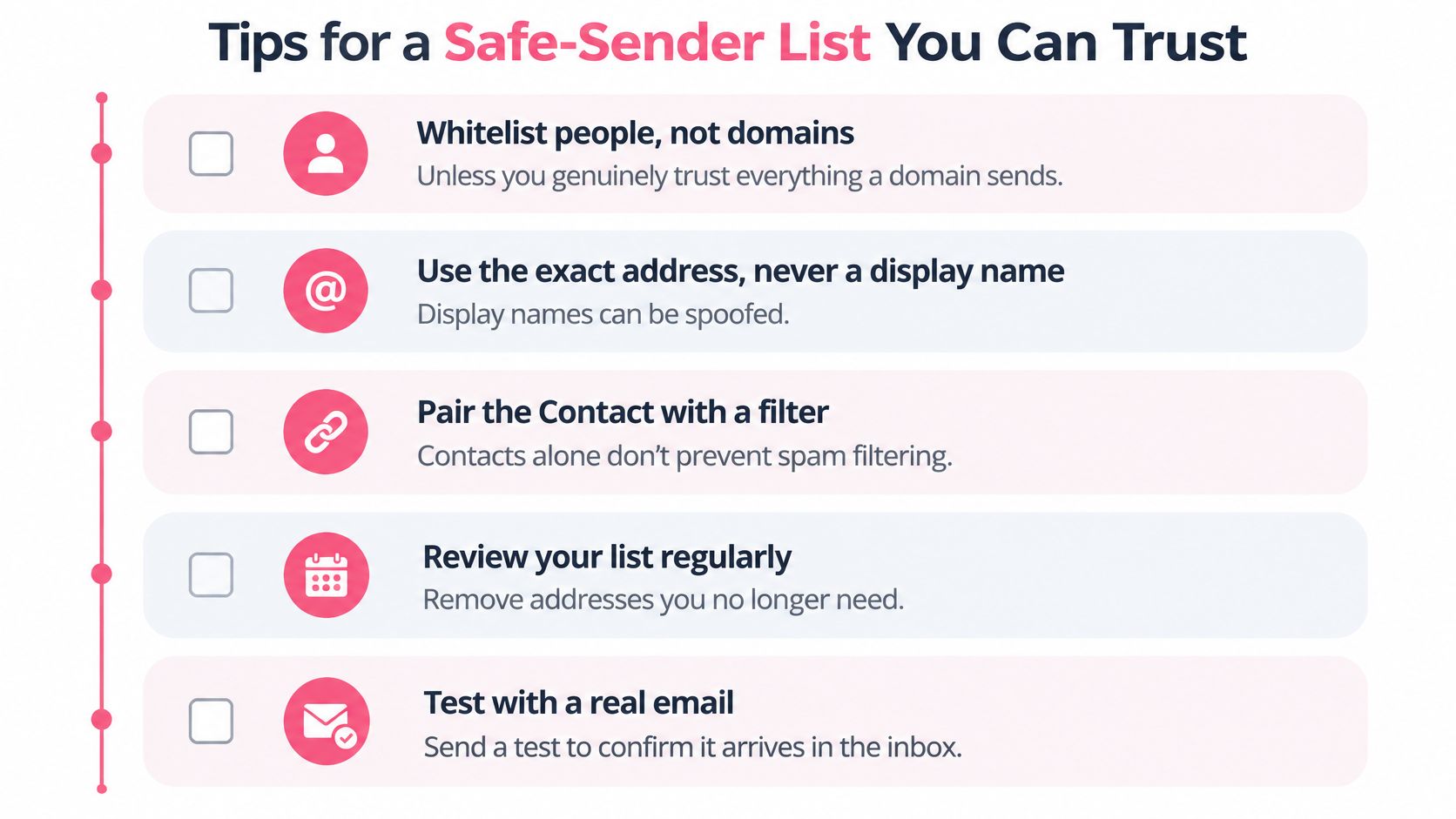
- Whitelist people, not domains. A domain pass is for a company you'd trust with every mailbox it owns. Everyone else gets one exact address.
- Use the address, never the display name. Display names are costumes. Filters match what you type in From, and a nickname will miss or match the wrong thread.
- Pair the Contact with the filter for VIPs. Your accountant, your biggest client, your kid's school. Contacts are the handshake. The filter is the rule that keeps the next invoice out of Spam.
- Review Settings → Filters and Blocked Addresses once or twice a year. Delete rules for newsletters you cancelled and vendors you left. Dead rules are how old domains keep a free pass.
- Don't ask recipients to whitelist your bulk or cold email. That's a courtesy, not a strategy. Permission and authentication belong on the sending side.
Google reported in 2023 that earlier authentication requirements reduced unauthenticated messages received by Gmail users by 75%, a drop DeepStrike's spam statistics ties directly to sender authentication sitting beside any user-built allowlist. Persistent delivery trouble is usually fixed by the sender, not by another recipient clicking Not spam.
If you're building that sender-side habit for a business, IT Cloud Global's notes on how to reduce business email compromise risk are a useful companion. A safe-sender list should stay tiny, named, and boring.
Set Up Your First Safe-Sender Filter Today
Pick the one sender whose mail you lost this month. Open Gmail on a computer, build the Never send it to Spam filter, save that address to Contacts, and click Not spam on anything already stranded. That's about two minutes. Add the next trusted sender only when you miss another real message. A growing list you never audit is how a whitelist turns into a liability.
Whitelist the people you trust, and make sure you are easy to trust, too.
If you run B2B outreach and replies keep vanishing into other people's Spam folders, recipient whitelists are a courtesy, not a plan. We're pay-per-close. Ever Outbound builds your list of verified decision makers, writes and sends short specific copy on warmed domains so emails land in the inbox, books interested prospects straight onto your calendar, and you show up to close the deals.
Ever Outbound Inc. runs done-for-you B2B outreach for teams whose mail should reach the inbox without begging every recipient for a personal filter. We're pay-per-close, so the work is tied to deals you close, not to a pile of sends. If your pipeline depends on mail that lands and gets answered, visit Ever Outbound Inc. and see how the sender side gets handled.